%20(1).png)
UK architects searching for the ultimate productivity hack for 2026 need look no further than these 5 hidden AutoCAD secrets that will revolutionise your drafting workflow.
Architecture in 2026 is all about AI-driven automation and unified cloud workflows, and the latest AutoCAD 2026 update delivers game-changing features specifically designed to eliminate repetitive tasks and streamline collaboration.
Whether you're working on residential projects in Manchester, commercial developments in London, or heritage renovations across the UK, these powerful yet overlooked tools can save you hours each week whilst ensuring compliance with British building regulations and standards.
Stop wasting valuable billable hours manually replacing repetitive geometry like furniture, fixtures, and fittings.
AutoCAD 2026's Smart Blocks: Detect and Convert feature uses artificial intelligence to scan your entire drawing, identify similar unblocked objects, and convert them into block definitions instantly.
Think about a typical office fit-out project. You've placed dozens of desks, chairs, and workstations throughout the floor plan.
Traditionally, you'd spend 30-45 minutes manually selecting each piece, creating block definitions, naming them, and replacing every instance. Smart Blocks completes this in under 2 minutes.
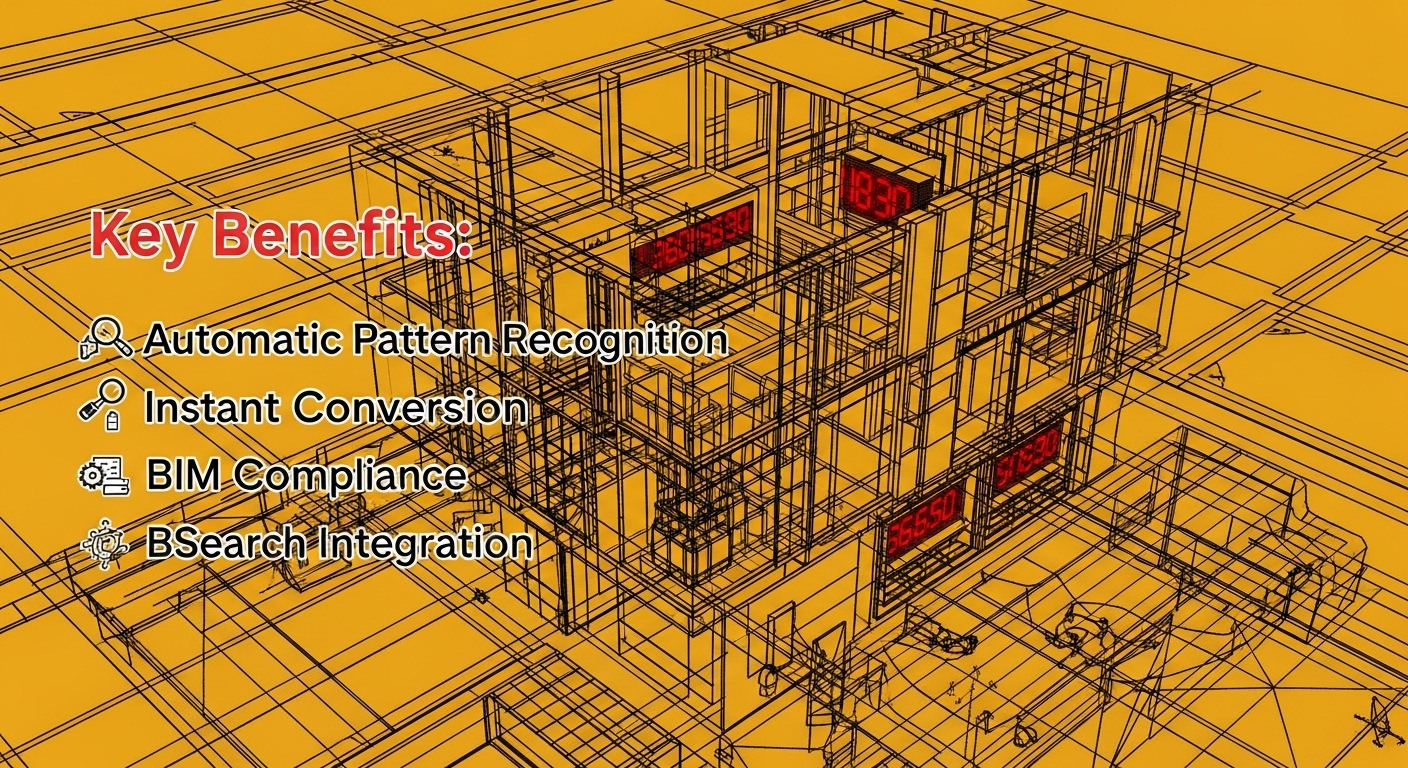
Key Benefits:
• Automatic Pattern Recognition
The AI scans your drawing in seconds, identifying those 47 identical office chairs, 23 wall sockets, and repeated bathroom fixtures across multiple floors. It recognises patterns even when objects are rotated or scaled differently.
• Instant Conversion
Review AI suggestions visually with thumbnail previews showing how many instances were found. Click approve, and AutoCAD handles conversion automatically whilst preserving layer properties and formatting.
• BIM Compliance
Creates blocks conforming to PAS 1192 and ISO 19650 standards required on UK government projects, automatically generating appropriate naming conventions.
• BSearch Integration
The new BSearch command compares your drawing against your office block library, replacing manually drawn furniture with practice standards automatically. Perfect when junior staff draw furniture individually instead of using standard blocks.
Real Impact: A 200-unit apartment development in Leeds with furniture drawn as individual lines traditionally requires 2-3 days of technician time (£1,200-£1,920 in labour costs).
Smart Blocks completes this in under one hour, delivering massive time and cost savings that directly improve project profitability.
Picture this nightmare: You're rushing to complete a planning application before the deadline.
At 4:30 PM, you print drawings only to discover half your dimensions are invisible—they're on the wrong layer. You spend the next frantic hour hunting down errant annotations, manually changing layers, and re-plotting everything.

AutoCAD 2026 introduces three system variables that automatically route annotations to correct layers, regardless of which layer is currently active when you create them.
The Three Game-Changers:
• TEXTLAYER
All new text (room names, notes, annotations) automatically appears on your designated text layer. You're adding room names whilst the wall layer is active? Text lands on the text layer automatically—no manual switching required.
• DIMLAYER
Dimensions automatically go to their proper layer. Dimensioning a structural grid with the grid layer current? Dimensions appear on your dimension layer, not the grid layer, ensuring clean separation.
• CENTERLAYER
Manages centerlines and center marks automatically. Essential for technical detailing and mechanical coordination, ensuring these critical reference elements stay properly organised.
Why UK Practices Need This:
Set these variables once in your template file, and the problem disappears forever. Every team member automatically follows the same layer structure without thinking about it. Junior architects can't accidentally put annotations on wrong layers—AutoCAD handles it automatically.
For practices following BS 1192 layer naming conventions or transitioning to ISO 19650 protocols, configure these variables to match your office standards precisely.
When coordinating with structural engineers, MEP consultants, and quantity surveyors, they receive clean, properly organised drawings where everything lives on the correct layer—exactly as British Standards require.
The Result: No more last-minute printing disasters, no more quality control time spent hunting misplaced annotations, no more errors that could delay building control approvals.

UK architects working under JCT or NEC contracts need accurate revision tracking. When contractors question dimension changes or building control asks about modifications after initial submission, you must demonstrate exactly what changed and when.
Previously, tracking changes required running DWG Compare—opening two drawing versions side by side, waiting for AutoCAD to highlight differences. Time-consuming, imprecise, and it doesn't tell you when changes occurred or why.
Activity Insights transforms this into an automatic background process, maintaining a detailed, time-stamped log of everything happening in your drawing.
What You Get:
• Complete Timeline
See exactly what was modified, when changes occurred, how long each editing session lasted, and whether file size increased or decreased. Tuesday 10:15 AM: dimensions modified (17-minute session). Wednesday 2:30 PM: text annotations added (42-minute session).
• Clickable History
Each entry shows precisely which elements were affected, creating a comprehensive record of design development without any additional effort.
• Workflow Patterns
Discover that structural grid modifications consistently take 2-3 hours, suggesting needs for better tools or training. Notice errors typically occur during late afternoon sessions, indicating fatigue issues.
• Professional Protection
Maintain audit trails for professional indemnity insurance requirements. If disputes arise about design decisions, you have timestamped evidence demonstrating due diligence.
Perfect for UK Practice:
The automatic logging supports ISO 9001 quality management systems many UK architectural practices maintain. During planning applications, when officers request modifications, Activity Insights provides clear documentation of design evolution. The timestamped revision history integrates seamlessly with your drawing register and issue sheets.
Every UK practice has experienced this disaster: Your structural engineer in Birmingham opens the latest drawings.
Error messages flood the screen—"Cannot find Xref," "Font not found," "Plot style table missing." Nothing prints properly, the project stalls, and you spend hours on emergency calls resolving file path issues.
.jpeg)
The problem stems from how AutoCAD traditionally handles support files. External references, fonts, and plot style tables use local file paths that don't exist on consultants' computers. They must manually reconfigure paths or wait for you to courier USB drives with updated templates.
AutoCAD 2026's Connected Support Files feature eliminates this entirely through Autodesk Docs integration.
How It Works:
• Single Global Setup
Project administrators define one set of paths for Xrefs, fonts, and plot style tables in the cloud. All team members inherit these automatically—no local configuration needed.
• Automatic Synchronisation
When your structural engineer in Birmingham, MEP consultant in Edinburgh, and architect in London open drawings, AutoCAD pulls correct support files from the cloud automatically. Everyone sees identical results.
• Instant Updates
Update your office's plot style tables once in Autodesk Docs. Changes propagate automatically. Next time anyone opens project drawings, they use updated plot styles—no emails, no manual installations, no coordination headaches.
• BIM Compliance
Aligns perfectly with BIM Level 2 requirements and ISO 19650-compliant workflows, integrating seamlessly with Common Data Environment (CDE) protocols required on UK government projects.
Real-World Benefits:
Five-minute setup at project inception delivers immediate, ongoing payoff. No more emergency calls about missing files before printing deadlines.
No more couriering USB drives. No more project delays because consultants can't open your drawings properly. Multi-disciplinary collaboration transforms from constant friction into a seamless process that just works.
You're working on a complex curtain wall detail, trying to snap to the tangent point where a curve meets a column. AutoCAD keeps grabbing the wrong endpoint.
You zoom in, try again—still wrong.
You navigate to snap settings, toggle off Endpoint, lose context, can't snap to anything useful, toggle back on, and waste minutes fighting the software.
Hold Shift and right-click anywhere in your drawing. A context menu appears with all snap options—Endpoint, Midpoint, Center, Tangent, Perpendicular, and more. Click your desired snap, and AutoCAD temporarily overrides all other settings for that single placement only. Your normal snap settings immediately return for the next operation.
Why This Matters:
• Complex Projects Made Simple
Shines on renovation projects, listed building work, and dense urban sites where drawings become cluttered with geometry.
Victorian terrace conversions with thousands of survey points? Select Intersection from the override menu and place your point exactly where walls meet—ignoring dozens of competing snap points nearby.
• Maintains Design Flow
No navigating to settings panels, no toggling checkboxes, no losing your workflow rhythm. The technique becomes second nature within hours, dramatically improving drafting speed on complex drawings.
• Heritage Applications
UK architects documenting Grade II listed buildings with intricate architectural details find this transformative.
Measure the exact tangent point where a curved bay window meets a stone archway—Shift+Right-Click, Tangent, done. No fighting software, no errors during conservation officer review.
• British Standard Accuracy
Essential for Part M accessibility compliance documentation and Part L thermal performance drawings where precision is non-negotiable. Maintain exact measurements without snap interference.
The Learning Curve: Nearly nonexistent. Try it once and you'll immediately understand its value. Within hours, reaching for Shift+Right-Click becomes instinctive whenever you need that perfect snap point amidst cluttered geometry.
These five AutoCAD secrets deliver competitive advantages that extend beyond simple time savings. Don't attempt to master all features simultaneously—start with whichever addresses your most pressing workflow challenge.
Choose Your Starting Point:
• Layer management causing rework? → Focus on auto-layering
• Missing Xrefs disrupting collaboration? → Implement Connected Support Files
• Repetitive geometry consuming billable hours? → Begin with Smart Blocks
UK architects who systematically adopt these features report saving 3-5 hours per week—150-250 hours annually per person, representing substantial value regardless of practice size.
Beyond Efficiency:
Faster turnaround improves client satisfaction and wins repeat commissions
Future-Proofing Your Practice:
The architectural profession evolves rapidly with increasing demands for sustainability compliance, building performance analysis, and digital collaboration.
By mastering these AutoCAD productivity hacks now, UK architects build the foundation for adapting to future challenges whilst maintaining design excellence and technical precision.
AutoCAD 2026 demonstrates that software can evolve thoughtfully to address real workflow problems.
These five secrets (often overlooked but transformative in daily use) show how careful development genuinely improves professional practice.
Architects who embrace these features position themselves at the forefront of digital practice, ready to deliver exceptional design work efficiently and profitably in 2026 and beyond.